
TECHNOLOGY
Make Ubuntu Look Like Windows: A Step-by-Step Guide
Make Ubuntu look like Windows with Dash to Panel, ArcMenu, and a shell theme matched to your GNOME version, plus the home folder User Themes can load.

You can make Ubuntu look like Windows without swapping the system underneath. The left dock and the top bar can become one taskbar. A start menu can sit on that bar, and the windows can take a Windows-style theme.
The short answer is three GNOME extensions plus one theme, each matched to your GNOME Shell version. This guide maps your Ubuntu release to that version, installs the extensions, and puts the theme in the folder the shell will read. It also covers the fixes when an update turns the look off.
Windows Layout Changes on the Ubuntu Desktop
Ubuntu Desktop is GNOME Shell with a dock on the left and a slim bar across the top. A Windows layout does not flip those pieces with one switch. Four layers sit on top of each other, and each layer is a different kind of change.
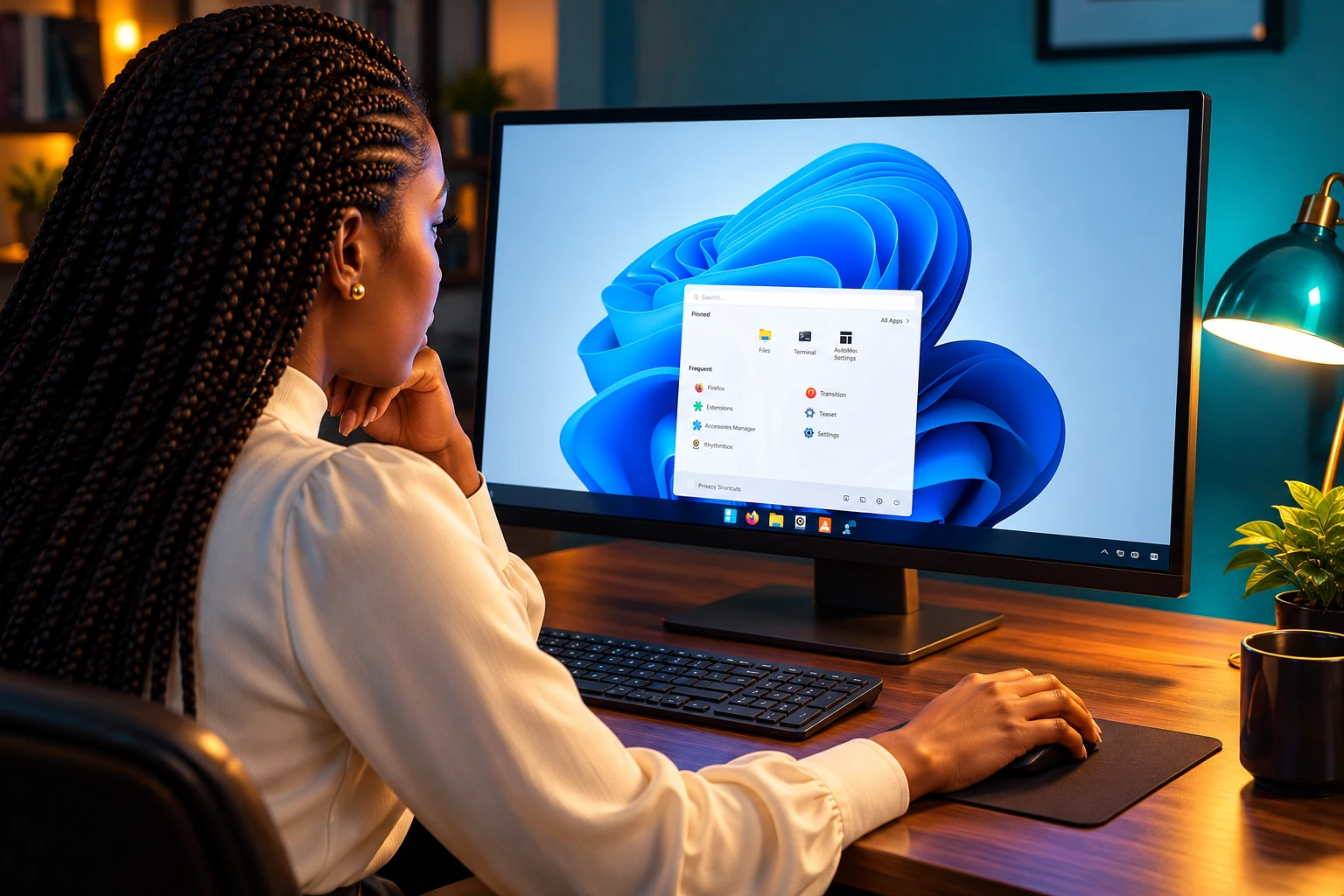
The panel layer merges the top bar and the dock into a single bar. That is the job of Dash to Panel on the extensions site, which moves the dash into the main panel so launchers and the tray share one strip, in the style of Windows 7 and later. The menu layer adds a launcher that can use a Windows 10 or Windows 11 arrangement. The application layer is a GTK theme, and it restyles the insides of windows. The shell layer restyles the bar, the overview, and the other chrome that is not part of any app.
GNOME Tweaks switches the application theme from its Appearance page. The Shell menu on that page stays empty for a theme in your home folder until the User Themes extension is turned on. That split is why a Windows theme can change Files and a few other windows while the top of the screen still looks like Ubuntu.
Which GNOME Shell Version Does Your Ubuntu Release Use?
Every extension below has to be matched to your GNOME Shell version. An extension is built for a Shell number, not for the Ubuntu number printed on the installer. Install a build whose Shell line does not include yours and the shell turns it off, which is how a taskbar vanishes the morning after an upgrade.
| Ubuntu release | GNOME Shell | Desktop session | Support window in the notes |
|---|---|---|---|
| Ubuntu 24.04 LTS | 46 | Before the Wayland-only change | Security maintenance until 31 May 2029 |
| Ubuntu 25.10 | 49 | Wayland only | Nine months, through July 2026 |
| Ubuntu 26.04 LTS | 50 | Wayland only | Five years of maintenance updates |
The Shell numbers and the session note come from Ubuntu’s release notes. The Ubuntu 26.04 LTS desktop summary is the page that pairs GNOME 50 with that LTS and recalls GNOME 46 on Ubuntu 24.04. The same notes place the Wayland-only Ubuntu Desktop session at Ubuntu 25.10, because GNOME Shell no longer runs as an X.org session. Apps built for X.org still run through XWayland.
If your machine is a point release of one of those versions, the Shell number in the table still applies. Ubuntu 24.04.5 is still the 24.04 line. You do not hunt a new extension set for each point release unless the Extensions app marks something incompatible after an update.
Extensions That Make Ubuntu Look Like Windows
Install a manager and Tweaks before any theme work. Extension Manager browses the extensions site from the desktop, which matters because the Firefox snap on Ubuntu often cannot see the browser connector the website expects.
sudo apt update
sudo apt install gnome-shell-extension-manager gnome-tweaks
Open Extension Manager from the app grid, use Browse, and install one extension at a time. Log out and back in after each install on a Wayland session. The shell reads its extension list at login, so a toggle you flip in the app can sit there unseen until the next session.
| Extension | What it changes | Shell line to require |
|---|---|---|
| Dash to Panel | One taskbar in place of the dock and the top bar | Version 74 lists shells 46, 47, 48, 49, 50, and 51 |
| ArcMenu, extension 3628 | A start-style menu | Version 70.0 lists shells 45 through 51 |
| User Themes | A shell theme from your home folder | A separate build per shell, including 46, 49, 50, and 51 |
| Arc Menu, extension 1228 | An older menu project. Do not use it for this layout | Active lines stop at shells 3.36 and 3.38 |
On Ubuntu 26.04 the first two rows already include shell 50, so the current Dash to Panel and ArcMenu builds are the ones you install. On Ubuntu 24.04 you need a line that includes 46, which those same current builds also list. The last row is the trap in older write-ups that still link the archived menu.
How to Turn on Dash to Panel
Search for Dash to Panel in Extension Manager and install it. After you log back in, the top bar and the dock should already have collapsed into one panel. Open the extension’s own settings from the slider next to its name, not from Tweaks.
- Set the panel edge to the bottom. A bar that stays on top still reads as GNOME, even with new icons.
- Center the app icons for a Windows 11 row. Keep them on the left, beside the menu button, for a Windows 10 row.
- Open the Extensions app and confirm Ubuntu Dock is off. If the left bar is still on screen, switch Ubuntu Dock off and log in again.
- If you use a second monitor, set the panel’s multi-monitor option before you judge the layout. The extension can show the bar on one screen or on each screen.
Dash to Panel is written to disable Ubuntu Dock when it turns on. Updates have still left some people with both bars, so the Extensions check is worth doing even when the first login looks right.
ArcMenu Layouts for Windows 10 and Windows 11
ArcMenu has to read the application list, and on Ubuntu that needs two packages before the menu is useful. Install them, then install ArcMenu from Extension Manager. Use extension 3628, the maintained project. Skip extension 1228.
sudo apt install libgnome-menu-3-0 gir1.2-gmenu-3.0- Layout 11: The Windows 11 arrangement, with a search field and pinned apps.
- A Windows 10 layout: The older column of tiles, if you want that Start menu instead.
- Button position: The left end of the Dash to Panel bar, so it sits where a Start button sits.
Right-click the new button and open ArcMenu settings to reach those choices. The ArcMenu help wiki for every layout covers the other menu shapes, the icon on the button, and the shortcut. Leave the menu button on the panel’s left end even if the app icons are centered, or the bar stops reading as a Windows taskbar.
The User Themes Package for Your Shell
User Themes does not paint anything by itself. Its own listing sums the job up as “Load shell themes from user directory.” It is an official GNOME Shell extension, which is why Ubuntu can ship it as a normal package instead of a random download.
On Ubuntu 25.10 the user-theme package in the Ubuntu archive is version 49.0-1, and it depends on gnome-shell 49, up to but not including 50. A 50.0-1 build of the same package depends on gnome-shell 50, up to but not including 51. Installing with apt keeps the extension on the Shell your release shipped.
sudo apt install gnome-shell-extension-user-themeThat package name is the path on Ubuntu 25.10 and on the 50-series build. On Ubuntu 24.04, install User Themes from Extension Manager or from the User Themes page on the GNOME site, and take the build whose shell list includes 46. Version 60 is one Active build for shell 46. Turn the extension on, then log out and back in.
THE SHELL MENU STAYS EMPTY UNTIL THIS IS ON
- What it unlocks: The Shell dropdown in Tweaks, for a theme that lives in your home folder.
- What it does not do: It does not apply a theme, move the panel, or add a menu.
If Tweaks was already open when you turned the extension on, close it and open it again. The Shell menu is filled when Tweaks starts, not while it sits in the background.
Shell Theme Folders the Desktop Can Read
A shell theme is a folder, not a file you double-click. Tweaks looks for a file named gnome-shell.css inside a gnome-shell folder, and that pair has to sit inside a theme folder under your home directory. Two paths work.
~/.local/share/themes/ThemeName/gnome-shell/gnome-shell.css
~/.themes/ThemeName/gnome-shell/gnome-shell.css
Use the first path. The second is an older location that still loads. A copy under /usr/share/themes applies to every account on the machine and needs admin rights, which you do not need for a theme only you will use.
- Create the folder with
mkdir -p ~/.local/share/themes. - Unpack the archive so the theme’s own name is the first folder inside that path. A second nested folder with the same name is the usual reason Tweaks never lists it.
- Confirm that gnome-shell/gnome-shell.css is really there. An archive that only has gtk-3.0 or gtk-4.0 is an application theme, and it will never appear in the Shell menu.
- Open Tweaks, go to Appearance, and set Shell to that theme name. Set Applications to the GTK theme if the download included one.
- Log out and back in. On an Xorg session from before the 25.10 change, Alt+F2 and then the letter r reloads the shell. On the Wayland session, that keystroke does not.
Icons go in ~/.local/share/icons or in ~/.icons, and you pick them under Icons in the same Tweaks pane. Cursor themes use those same icon folders and the Cursor menu. If Settings and Files stay on the Ubuntu look while older apps change, the theme is missing a gtk-4.0 folder, so the newer GNOME apps have nothing new to read.
Stick to a theme whose folders you can see, from a project you can identify. An extension or a theme runs inside the shell session. Install one piece, log in, and only then add the next, so a bad drop is easy to undo.
How to Place the Taskbar, Menu, and Window Buttons
The theme changes colors and corner shapes. The Windows arrangement itself is a short list of settings in Dash to Panel, ArcMenu, and Tweaks. Set them in that order, and log in once at the end if you changed more than one.
PANEL SETTINGS THAT READ AS WINDOWS
- The edge: Bottom, from Dash to Panel’s position setting.
- The icons: Centered for a Windows 11 row, or left-aligned for a Windows 10 row.
- The menu: ArcMenu’s button at the left end of that bar, with layout 11 or a Windows 10 layout.
- The dock: Ubuntu Dock switched off, so only one bar remains.
- The window buttons: In Tweaks, under Window Titlebars, turn on Minimize and Maximize. GNOME hides both until you ask, and the Dash to Panel page points at that switch for a traditional window.
Wallpaper stays a separate choice under Settings, then Background. Use an image you have the right to use. A theme does not replace your files, your browser profile, or the apps that are installed. The clock and the tray stay on the panel; Dash to Panel lets you move those clusters if you want the clock centered the way Windows 10 and Windows 11 often show it.
A blur extension can frost the panel after this layout is stable. Add it only then. Each extra extension is another build that has to list your Shell version, and it is another thing that can turn itself off on the next upgrade.
What Breaks the Windows Look After an Update?
The layout holds until an upgrade moves the Shell number or an extension turns itself off. Work through the checks in this order. The first one explains most of the mornings where the dock is back and the theme is gone.
- The Shell number moved: Open Extension Manager after an Ubuntu upgrade. Anything marked incompatible has been switched off. Install the update whose shell list includes the new number, or install the apt package that matches the new release.
- The theme is missing in Tweaks: User Themes is off, Tweaks was left open, the archive is nested one folder too deep, or gnome-shell.css is not named that.
- Two bars are on screen: Ubuntu Dock came back on. Switch it off in the Extensions app and log in again.
- The panel vanishes after the screen locks: On Ubuntu 24.04, older Dash to Panel builds could drop the panel after sleep or unlock. Move to a build that lists shell 46, take the system updates, and log in again.
If the desktop will not finish loading after a new extension, do not keep stacking fixes on the broken session. From a text console, turn off the last extension you added, then log in again. Adding the three extensions one at a time is what makes that last step obvious.
A work PC that freezes the extension list cannot grow this taskbar at all. The theme file in your home folder does nothing until User Themes is allowed to run, and Dash to Panel cannot replace a dock it is not allowed to load.
Frequently Asked Questions
Can You Turn the Ubuntu Dock Back On?
Yes. Switch off Dash to Panel and ArcMenu, switch Ubuntu Dock back on, and set the Shell theme in Tweaks back to the default. Log out and back in. Your documents and applications stay in place, and you can leave the extensions installed as long as they stay off.
Does This Windows Layout Work on Kubuntu or Xubuntu?
No. This layout loads only inside the GNOME Shell session used by Ubuntu Desktop. Kubuntu ships KDE Plasma and Xubuntu ships Xfce, and each of those desktops has its own panel and theme settings. These three extensions do not run there.
Can You Keep Files on the Desktop?
Not with the steps on this page. GNOME leaves the desktop empty, and a Windows theme does not change that. A desktop-icons extension can show files there, and it needs its own build that lists your Shell version, the same check you already used for the panel.
Do You Have to Switch Off Wayland?
No. Keep the Ubuntu Desktop session. Dash to Panel, ArcMenu, and User Themes run on Wayland. Log out and back in to see each change, because that session does not reload the shell when you press Alt+F2 and type r.
What If the PC Blocks GNOME Extensions?
The Windows taskbar will not appear. All three pieces have to load as shell extensions, and a theme in your home folder does nothing until User Themes is allowed to run. On a machine that freezes the extension list, stay with the stock dock or ask the admin for a session that already has the layout you need.
Check the Shell version first the next time you upgrade. The theme folder can stay where it is. The extensions need a build that lists the new number, and then the taskbar, the menu, and the window chrome come back together.

The Court Revisits the Climate Nuisance Door It Left Open

ChatGPT Now Compiles Live Interfaces With GPT-6

A Tanker Attack Moves the War Into Qatar’s Waters

Personio Buys Circula to Own the DATEV Channel

Bluesky Files for .bsky and Enters the Registry Queue

Microsoft’s 96% Cyber Score Sits at 86.3% on the Board

Musk’s $914 Billion Lead Is a Public SpaceX Bet

Skrilla’s 6-7 Became Word of the Year by Meaning Nothing

Free Live Sports Streaming Without Cable: An Antenna and App Guide

Xbox Puts 15-Hour Caps on Game Pass Cloud Play
-
 NEWS4 months ago
Microsoft’s 96% Cyber Score Sits at 86.3% on the Board
-
 BUSINESS6 months ago
Musk’s $914 Billion Lead Is a Public SpaceX Bet
-
 ENTERTAINMENT1 year ago
Skrilla’s 6-7 Became Word of the Year by Meaning Nothing
-
 SPORTS4 months ago
Free Live Sports Streaming Without Cable: An Antenna and App Guide
-
 GAMING2 months ago
Xbox Puts 15-Hour Caps on Game Pass Cloud Play
-

 ENTERTAINMENT5 months ago
Endgame Encore’s $86 Million Trial for Infinity Vision
-

 BUSINESS2 years ago
Retail Banking vs Commercial Banking: Who Each Side Serves
-

 ENTERTAINMENT2 years ago
Andrew Garfield’s Spider-Man Films Are No Longer Free