
Microsoft has started testing a Copilot feature designed to tell Windows 11 users why their PC feels sluggish. The optional tool, called PC Insights, is rolling out slowly to Copilot users in the United States and asks for permission before reading anything. Once enabled, it can interpret live CPU, RAM, and storage data and answer questions like “What’s my current CPU usage?” and “Do I have enough space for a 100GB game?” without sending the user to Task Manager. The feature’s capabilities, permissions model, and footprint may shift before testing ends.
The rollout, first reported by Windows Latest on Sunday, lands with a built-in contradiction. Copilot for Windows ships with a private copy of Microsoft Edge, behaves as a full web app, and can sit on close to 1 GB of RAM while doing nothing. The tool meant to surface what is eating up RAM on a Windows 11 PC is itself one of the bigger RAM eaters on that same machine.
What PC Insights Can Read From a Windows 11 PC
PC Insights is an opt-in, read-only feature inside the Copilot app for Windows. It pulls answers from the device’s current state, so users get explanations grounded in the hardware actually on their desk rather than generic troubleshooting pages. Microsoft frames it as a faster path than digging through Settings, Task Manager, or File Explorer for the same information. “With your permission, Copilot gathers the relevant information and explains it in plain language so you can take action faster,” Microsoft said in a Microsoft’s own description of the PC Insights feature.
According to Windows Latest, once a user grants access, PC Insights can read system resources including current CPU, RAM, and GPU usage. It can calculate available storage, total storage, and whether there is room to install a given app or game. PC Insights can break down folder and file sizes, including the size of the Downloads and Documents folders, though it cannot read the contents of individual files unless the user grants explicit access. It can see connected USB devices, external drives, printers, and webcams, along with the current state of Bluetooth and Wi-Fi. Battery health, antivirus status, BIOS information, and full device specifications round out the data set.
The questions a user can ask fall into clear buckets. Microsoft lists “What graphics card do I have?”, “Do I have enough space for a 100GB game?”, and “What’s my current CPU usage?” as headline examples on its support page. A user can follow up by asking whether 87 GB of free storage is enough for a game that requires more than 100 GB, and Copilot can search the web, report the gap, and suggest cleanup. The assistant can also flag unusually high memory usage, sustained CPU activity, low free disk capacity, and a heavily loaded GPU as it walks through the answers.
| Category | Example questions to ask Copilot |
|---|---|
| General | “What graphics card do I have?”, “Do I have enough space for a 100GB game?”, “What’s my current CPU usage?” |
| Device and system | “What are my computer’s full specifications?”, “Is my antivirus running?”, “How is my battery health?”, “What’s my BIOS version?” |
| Performance and activity | “What USB devices are plugged into my computer?”, “What’s my current CPU usage?”, “Is my external hard drive recognized?”, “What network adapters does my PC have?” |
| Storage and files | “How big is my Downloads folder?”, “Do I have enough storage for a large game or app?” |
| Connected devices | “Is my printer online?”, “Is my webcam detected?” |
The data is read from Windows system APIs and translated into natural-language replies. Users can ask the assistant to walk them through what each reading means, including whether a current disk load is normal or a sign of trouble. PC Insights does not yet make changes; the support page is explicit that the assistant cannot fix issues, run troubleshooting steps automatically, monitor the device in the background, or access files or data without the user’s permission.
How Microsoft Wires Permission and Privacy
Every Copilot question that touches PC Insights trips a permission prompt. Microsoft documents three choices: allow for the current session only, set the action to “Always allow,” or decline with “Not now.” A session, in Microsoft’s definition, lasts until the PC restarts or the app is stopped. Users who pick “Always allow” can switch the setting back to “Ask every time” or revoke access entirely from Copilot privacy settings.
Microsoft is also drawing a line around what the company will and will not do with the data. “Your personal files and system info aren’t stored or used to train models,” Microsoft said. The same statement notes that Copilot may use conversation activity, including prompts and responses, to improve the experience and train models, depending on a user’s settings.
PC Insights is narrowly scoped on the data plane. It does not access work emails, Teams chats, calendars, or documents stored in a Microsoft 365 tenant, according to Microsoft. It only answers questions about the Windows device and only after the user grants permission. That scoping matters because the feature pulls real hardware telemetry, and Microsoft has been under pressure to show exactly where that telemetry stops.
The 1 GB Irony in the Diagnostician
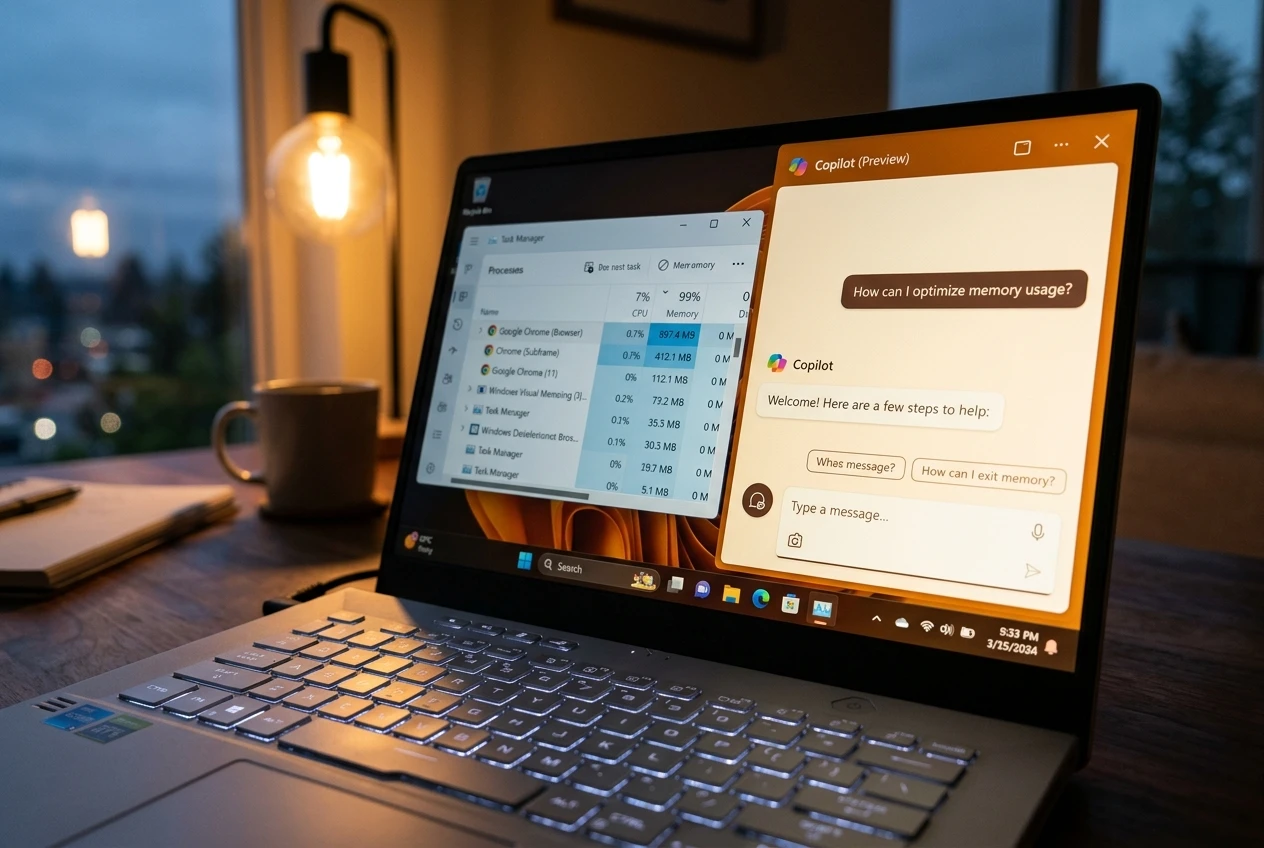
The new PC Insights arrives while Copilot itself is one of the heavier processes a Windows 11 user is likely to see in Task Manager. Windows Latest measured the Copilot app using close to 1 GB of RAM on a 32 GB system while it sat idle with nothing happening, as detailed in the test that put Copilot’s idle RAM near 1 GB. That number lines up with a separate 500 MB background RAM reading for the new Copilot, which climbs toward 1 GB while a user is actively chatting. The diagnostic tool is, in practical terms, being carried to the patient by an ambulance that itself needs the hospital.
The footprint shows up in Task Manager because Copilot now identifies itself as a Browser process. The Copilot installation folder contains a full copy of Microsoft Edge, including msedge.exe and the surrounding Chromium code. The result is that a tool designed to surface what’s eating up RAM on a PC is itself one of the bigger RAM eaters on the PC. Microsoft ships the separate Edge copy to power a new in-app browsing feature, so the wrapper has to carry its own rendering engine wherever it goes.
How a Native Copilot App Became a Browser in Disguise
The current Copilot shape is the product of several reorganizations inside Microsoft. Copilot originally debuted as a sidebar inside Edge, then went through a series of redesigns as a progressive web app, then a native Windows app built with WinUI. Windows Latest credits Microsoft AI CEO Mustafa Suleyman with pushing the company to build that native version, and described the result as having “worked very well.”
A reorganization since then shifted the consumer Copilot app away from Suleyman’s group. Microsoft rebuilt Copilot as a web app that ships with its own private Edge to support a new browsing feature, instead of redirecting users to the system default browser. TechRadar reported that the previous native app used WinUI, and that the new web wrapper behaves and feels similar to the web version of Copilot. The trade-off is that any change to Copilot features is faster to ship through the web stack, but the stack itself is heavier than a thin native client would be. The Microsoft Store listing now distributes the bundled web app to anyone installing the current Copilot.
The wider Windows lineup has been moving the same way. Microsoft Teams, Clipchamp, Widgets, and several other built-in Windows apps are already built on WebView2, the Edge-based renderer that pulls in Chromium. WhatsApp Desktop and Discord are well-known third-party examples of the same Electron-style approach. A single one of these apps can consume hundreds of megabytes of RAM, and Windows Latest has noted that running several of them together is where the cost stacks up for a typical Windows 11 machine.
Microsoft has framed its broader Windows 11 push as a move toward native frameworks such as WinUI 3 over time, with the goal of trimming the baseline RAM footprint. Those changes will land gradually, and Copilot in its current web form is what users get in the meantime. The asymmetry between the diagnostic tool and the diagnostician is built into the architecture for now.
Microsoft’s Counter-Push to Slim Down Windows 11
Microsoft has acknowledged the tension between Copilot’s footprint and PC Insights’ purpose. In a Friday post to Windows Insiders, the company outlined a plan to make Windows 11 faster and use less memory under load. The post came after months of criticism over AI features layered on top of Windows without clear user benefit. Microsoft framed the package as its answer to feedback the company has collected from people who care about the operating system.
The plan reads as a direct admission that Copilot has been over-deployed inside Windows. Microsoft is reducing Copilot entry points across the operating system, starting with Snipping Tool, Photos, Widgets, and Notepad. Another plank calls for a baseline memory footprint trim for Windows, freeing up more capacity for the apps users actually run. The company also promised a faster, more dependable File Explorer, with quicker launches, less flicker, smoother navigation, and more reliable copying and moving of large files. A related commitment targets more consistent performance under load, so apps stay responsive throughout the day.
You will see us be more intentional about how and where Copilot integrates across Windows, focusing on experiences that are genuinely useful and well crafted. As part of this, we are reducing unnecessary Copilot entry points, starting with apps like Snipping Tool, Photos, Widgets and Notepad.
Pavan Davuluri, Microsoft’s executive vice president for Windows and devices, made the comments in the Friday post to Windows Insiders, which was reported in full in Davuluri’s Friday Insider post on pulling Copilot back. He told testers that members of the Insider program “can expect to see tangible progress that you’ll be able to feel as you preview builds from us throughout the rest of the year.” The plans also address gripes about Windows that predate Copilot, including flaky Bluetooth behavior, slow wake-from-sleep, and intrusive widgets, alongside the AI critique.
What Windows Users Can Try in the Meantime
PC Insights is opt-in, so the first lever is simply not granting it access. Users who do not want Copilot reading system data can decline the permission prompt or revoke access later from Copilot’s privacy settings. Users who want the diagnostic features without the underlying Copilot process can fall back on the built-in tools Microsoft is trying to replace: Task Manager for live CPU, RAM, GPU, and disk usage, Resource Monitor for deeper per-process breakdown, and Storage Settings for a folder-by-folder view. Windows Latest also pointed out that Copilot itself can be removed or blocked entirely through Group Policy on supported editions of Windows, with a walkthrough covered in a guide to enabling and removing Copilot in Windows 11.
TechRadar’s testing suggested that closing Copilot when not in use brings its idle footprint back down. Users running Copilot on a low-RAM machine can treat it as an opt-in feature rather than a required one. Microsoft has told Insiders to expect tangible progress on the lighter baseline through the rest of the year as the work shows up in preview builds, after earlier talk of the abandoned 20/20 project to trim Windows idle RAM by a fifth never reached completion.
Frequently Asked Questions
What is Microsoft Copilot PC Insights?
PC Insights is an opt-in experimental feature inside the Copilot app on Windows that lets users ask natural-language questions about their PC and get answers drawn from live CPU, RAM, GPU, storage, battery, network, and BIOS data. Microsoft says PC Insights is being gradually rolled out to Copilot users on Windows, may not be available on every device, and is still evolving as an experimental experience.
Does PC Insights access my personal files?
PC Insights can calculate folder and file sizes for locations such as the Downloads and Documents folders, but Microsoft states it does not read the contents of individual files inside those folders unless the user explicitly grants extra permission. The feature is read-only on the device side.
Will Microsoft train AI on my system data?
Microsoft says it does not store or use personal files or system info to train models. The company adds that only conversation activity, such as prompts and responses, may be used to improve the experience and train AI models, depending on the user’s settings.
Why does Copilot use so much RAM?
Copilot for Windows now ships as a web application bundled with its own private copy of Microsoft Edge. Windows Latest measured it using close to 1 GB of RAM on a 32 GB system while idle, and TechRadar reported about 500 MB of background RAM use that climbs toward 1 GB while the user chats with the assistant.
Can I turn PC Insights off?
Yes. PC Insights is opt-in and prompts for permission each time. Users who pick “Always allow” can change the setting back to “Ask every time” or revoke access entirely from Copilot’s privacy settings, and Copilot itself can be removed or blocked through Group Policy on supported editions of Windows.