
Microsoft has shipped an optional, non-security Windows 11 preview update, KB5095093 dated June 23, 2026, with build numbers 26200.8737 for version 25H2 and 26100.8737 for version 24H2. The release bundles a long list of new features, headlined by a recovery tool called Point-in-Time Restore. It also folds in several 2026 deadlines that home users and IT teams need to plan around.
The preview is the last optional release of the month and previews fixes and features for the July Patch Tuesday. Several items begin rolling out immediately, including the Emoji panel’s GIF backend swap from Google Tenor to GIPHY, while others, including Point-in-Time Restore, are phased in gradually.
Point-in-Time Restore Lands as the Headliner
Microsoft describes Point-in-Time Restore as a flexible recovery feature that rolls a PC, including apps, settings, and personal files, back to a recent automatic restore point. Restore points are captured using Volume Shadow Copy Service and stored locally on the device. Microsoft says the goal is to minimize downtime and simplify troubleshooting without requiring technical skill. The feature is part of the gradual rollout in KB5095093 and is opt-in during the preview phase.
Unlike the legacy System Restore, which Microsoft says covers system files, registry settings, drivers, and installed applications, Point-in-Time Restore captures the full system state, including user files, applications, settings, passwords, secrets, certificates, and keys. Files stored in OneDrive and other cloud services stay untouched. Microsoft ships the snapshots automatically rather than letting users trigger them by hand. For consumers, a fresh snapshot is created every 24 hours and is deleted after 72 hours or when the reserved storage runs out. Enterprise customers can adjust both the snapshot frequency and the retention window to as little as four hours.
The trade-off is storage. Microsoft sets the reserved space to 2% of total drive capacity on PCs with at least 200GB free, with a minimum of 2GB reserved. Devices with smaller drives need to be set up manually. On Windows 365 Enterprise cloud PCs, the feature is always on, snapshots persist for up to a month, and admins can trigger them by hand.
| Capability | Point-in-Time Restore | System Restore |
|---|---|---|
| Configuration method | System Settings | Control Panel |
| Restore point trigger | Scheduled frequency (automatic only) | Event-triggered or manual |
| Retention | Maximum 72 hours per restore point | Indefinite (subject to disk space usage and cleanup) |
| Target scope | Full system state | System files and settings (app and user data coverage varies) |
| System storage impact | Mitigated storage impact due to reserved storage (lower) | Unmitigated storage impact (higher) |
| Management | Robust remote management | Limited remote management |
Point-in-time restore enables users to restore a Windows PC to the exact state in which it was at an earlier point in time. It happens in minutes using restore points.
The line is from Microsoft, published in the KB5095093 release notes dated June 23, 2026.
What Else Lands in the Build
Beyond the recovery tool, KB5095093 bundles changes across File Explorer, accessibility, Bluetooth, networking, voice features, and the Windows kernel. Microsoft labels most of them as gradual rollouts, meaning availability varies by device. The full changelog runs to more than 30 items, from Magnifier tweaks to networking stack fixes for cellular and VPN connectivity. Several are bug fixes wrapped into the same release.
Accessibility gets two of the more visible additions. A new screen tint feature in Settings > Accessibility applies a full-screen color overlay to reduce eye strain, with preset options, intensity controls, and an automatic mode. The Magnifier picks up direct zoom-percentage entry and the ability to change zoom increments from the magnifier bar, instead of forcing users back into Settings.
Voice access and voice typing now work in French, German, and Spanish. Microsoft says the on-device model corrects grammar, punctuation, and recognition errors in real time, even with background noise.
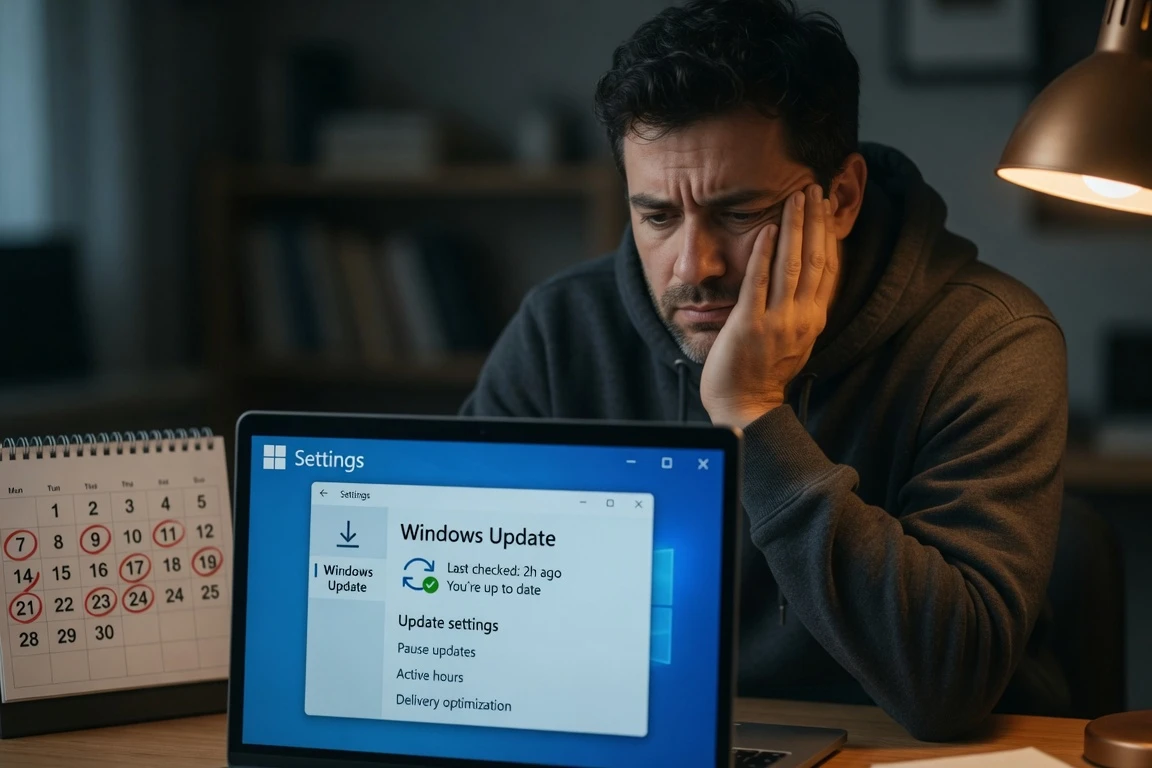
The Windows Update settings page exposes a calendar experience that lets users pause updates by choosing an end date, with the maximum pause length set at 35 days. The pause can be extended by picking a new end date, and the system can re-pause updates as needed. Bluetooth gains microphone mute sync between the audio mixer and the Hands-Free Profile, addressing inconsistencies on headphones with physical mute buttons or indicators. New printer installations now use Internet Printing Protocol (IPP) by default where supported, with a toggle in Settings for those who want the old behavior. Microsoft also fixes a set of File Explorer bugs, including a duplicated OneDrive entry in Favorites and a broken OneDrive shortcut when File Explorer runs in administrative mode.
- Graphics Kernel: Improves memory-management policy that allows PCs with more than 32GB of installed memory to run larger local AI models, a piece of Microsoft’s Windows AI agent pitch where most pieces stay in preview.
- File Explorer: Hovering over a file in Home now surfaces quick actions like Open file location and Ask Copilot for work and school accounts (Entra ID).
- Networking: Confidential Virtual Machines (CVMs) now use SR-IOV hardware acceleration by default for higher throughput.
- Bluetooth and Phone Link: Outgoing calls ring on the paired phone and transfer audio to the PC only when answered from the PC.
- Bluetooth: Accessory compatibility workarounds help AirPods appear faster in pairing mode and improve microphone reliability on Beats Studio Pro headphones.
- Input: Touchpad right-click zone size is now customizable in Settings, with default, small, medium, or large options on pressable surfaces.
- Search: Improves the reliability of setting Search related group policies.
- Display and graphics: Improves reliability of rendering while scrolling for certain apps spanning multiple monitors.
- WSL: Improves usage of WSL in mirrored networking mode with VPNs.
The Quiet Deadlines Bundled With This Update
The same release folds in a set of deadlines, several of which land inside the next four months. The most visible is the GIPHY swap, which takes effect on June 30, 2026. After that date, devices without the latest update see a “GIF service is not available” error when opening the Emoji panel with the Windows key plus period. Installing the latest update restores access.
Windows 11 24H2 Home and Pro editions reach end of updates on October 13, 2026. Microsoft says devices on those editions will stop receiving fixes for known issues, time zone updates, technical support, and monthly security and preview updates. Enterprise and Education editions of 24H2 remain supported until October 12, 2027, Microsoft adds.
Microsoft is also using KB5095093 to push the next phase of its Secure Boot certificate rotation. The release notes say quality updates now include additional high-confidence device targeting data, expanding the pool of devices eligible to automatically receive the new certificates. Devices only get the new certificates after demonstrating sufficient successful update signals, which Microsoft frames as a controlled and phased rollout. The company warns that certificates used by most Windows devices are set to expire starting in June 2026 and that devices that miss the new certificates will continue to start and operate normally in the meantime. Microsoft’s longer-term recommendation is to upgrade to the latest version of Windows 11.
- June 30, 2026: Emoji panel switches its GIF backend from Google Tenor to GIPHY. Devices without the latest update show a “GIF service is not available” error.
- October 13, 2026: End of updates for Windows 11 24H2 Home and Pro editions.
- October 12, 2027: End of updates for Windows 11 24H2 Enterprise and Education editions.
- Through 2026: Secure Boot certificate rotation continues, with phased delivery of new certificates via Windows quality updates.
How the Update Reaches Your PC
KB5095093 is an optional, non-security preview update, not the monthly Patch Tuesday release. Microsoft’s separate June 2026 security update, KB5094126, shipped earlier in the month. The preview lands at the end of each month and is meant to test fixes and features ahead of the following Patch Tuesday. Devices that have not opted into the “Get the latest updates as soon as they’re available” toggle will be offered the update as a manual install.
Microsoft has published the build in the Windows Update Catalog, where IT teams and power users can pull the package directly. Installation bumps Windows 11 24H2 to build 26100.8737 and Windows 11 25H2 to 26200.8737. A handful of fixes, including the Secure Boot certificate rollout, the GIPHY swap, and the Recycle Bin dialog fix, are marked for normal rollout and reach all eligible devices at once, while others, including Point-in-Time Restore, are phased in gradually.
Frequently Asked Questions
What is Point-in-Time Restore in Windows 11?
A new recovery feature in KB5095093 that captures the full system state, including user files, apps, and credentials, using Volume Shadow Copy. Microsoft rolls it out gradually, with consumers getting a fresh snapshot every 24 hours and up to 72 hours of retention.
When does the Emoji panel switch from Tenor to GIPHY?
June 30, 2026. Devices that have not installed the latest Windows update will see a “GIF service is not available” error in the panel on or after that date. Microsoft flags the cutoff in the KB5095093 release notes.
Will Windows 11 24H2 stop receiving updates?
Home and Pro editions reach end of updates on October 13, 2026. Microsoft says those devices will stop receiving fixes for known issues, time zone updates, technical support, and monthly security and preview updates.
Is KB5095093 a security update?
No. It is an optional, non-security C-release preview that tests fixes and features for the next Patch Tuesday. The June 2026 security update shipped separately as KB5094126. Microsoft’s preview cadence is meant to surface bugs before they reach mandatory updates.
How do I install KB5095093?
Open Settings > Windows Update and select “Check for updates.” Microsoft also publishes the build for manual download in the Windows Update Catalog.