
Installing Linux has a reputation for being fiddly, and the most popular tutorials make it worse. They tell you to shrink a Windows partition by hand, install a bootloader, and dual-boot two operating systems from one disk. For most people, the easy way to install Linux skips every bit of that. Put Linux on its own drive, leave Windows untouched on the original one, and switch between them in your firmware menu. The whole job takes about 15 minutes.
The catch the elegant single-disk method never mentions is that a shared drive is where the trouble starts. A second drive costs less grief than a corrupted partition table, and storage is cheap enough now that the trade is barely a question.
Why Dual-Booting Causes More Problems Than It Solves
Dual-booting puts two operating systems on one disk and hands the job of choosing between them to a bootloader, usually GRUB (GRand Unified Bootloader, the menu that loads at startup). On paper it is tidy. In practice it ties the fate of your Linux install to whatever Windows decides to do next.
Windows Updates Keep Breaking the Bootloader
The clearest example is recent. A Windows security update in August 2024 shipped a Secure Boot Advanced Targeting (SBAT, a mechanism that blocks bootloaders flagged as vulnerable) policy that disabled GRUB on many dual-boot machines, and the company did not fully resolve it until May 2025. Major Windows feature updates also tend to overwrite the EFI system partition with the Windows Boot Manager, quietly shoving GRUB aside. Microsoft’s 2025 Windows 11 refresh stumbles are a reminder that update season can break things you did not expect.
You Also Lose Space and Margin for Error
Sharing one disk means carving a finite drive in two, so both systems get less room at a time when applications and game installs keep ballooning. Worse, the partitioning step itself is where beginners delete the wrong volume. Get it wrong and you can wipe the Windows install you meant to keep. The single-disk approach asks you to take a real risk for a convenience you do not actually need.
- Windows updates can overwrite or disable GRUB without warning
- Manual partition resizing risks deleting data on the wrong volume
- Both operating systems share, and compete for, one pool of storage
- Repairing a broken bootloader means dropping into a live USB and running recovery commands
Pick a Distro and Desktop You’ll Actually Live With
The distribution you choose matters far less than people fear, as long as you stick to a popular one. They run the same apps and they are all well documented, so day-to-day use feels similar. What genuinely changes the feel of the machine is the desktop environment, the layer that controls how windows, menus, and settings look and behave.
Spend a little time on that choice. If you are coming from Windows, KDE Plasma and Cinnamon will feel the most familiar, while GNOME takes a different approach to navigation. You can boot any of these from a USB stick and try the desktop before committing to anything. Here is how the commonly recommended options line up.
| Distro | Default desktop | Base | Best for |
|---|---|---|---|
| Linux Mint | Cinnamon | Ubuntu / Debian | Windows-like familiarity, big community |
| Ubuntu | GNOME | Debian | Documentation for nearly every issue |
| Kubuntu | KDE Plasma | Ubuntu | Deep customization, Windows-style layout |
| Fedora | GNOME | Independent | Newer software, strong stability |
| Pop!_OS | COSMIC | Ubuntu | Window tiling and productivity |
| Fedora Atomic | Your pick | Independent | Resilience and easy recovery |
Two of those are newer than the rest. Pop!_OS now ships the Rust-based COSMIC desktop environment, which reached its first stable release alongside Pop!_OS 24.04 LTS (Long-Term Support) in December 2025. And Fedora’s atomic desktop variants let you pick from several desktops on top of an immutable base, a setup worth understanding before you flash anything.
The Two-Drive Method, Step by Step
The trick is to make sure only one storage drive is connected when the installer runs. With nothing else plugged in, you can choose the basic full-disk option, follow the prompts, and never touch a partition table. Here is the full sequence.
- Back up anything you want to keep to an external drive, cloud storage, or both before you touch hardware.
- Download your chosen distro’s ISO (the disk image file) and flash it to a USB stick with the free Rufus flashing tool.
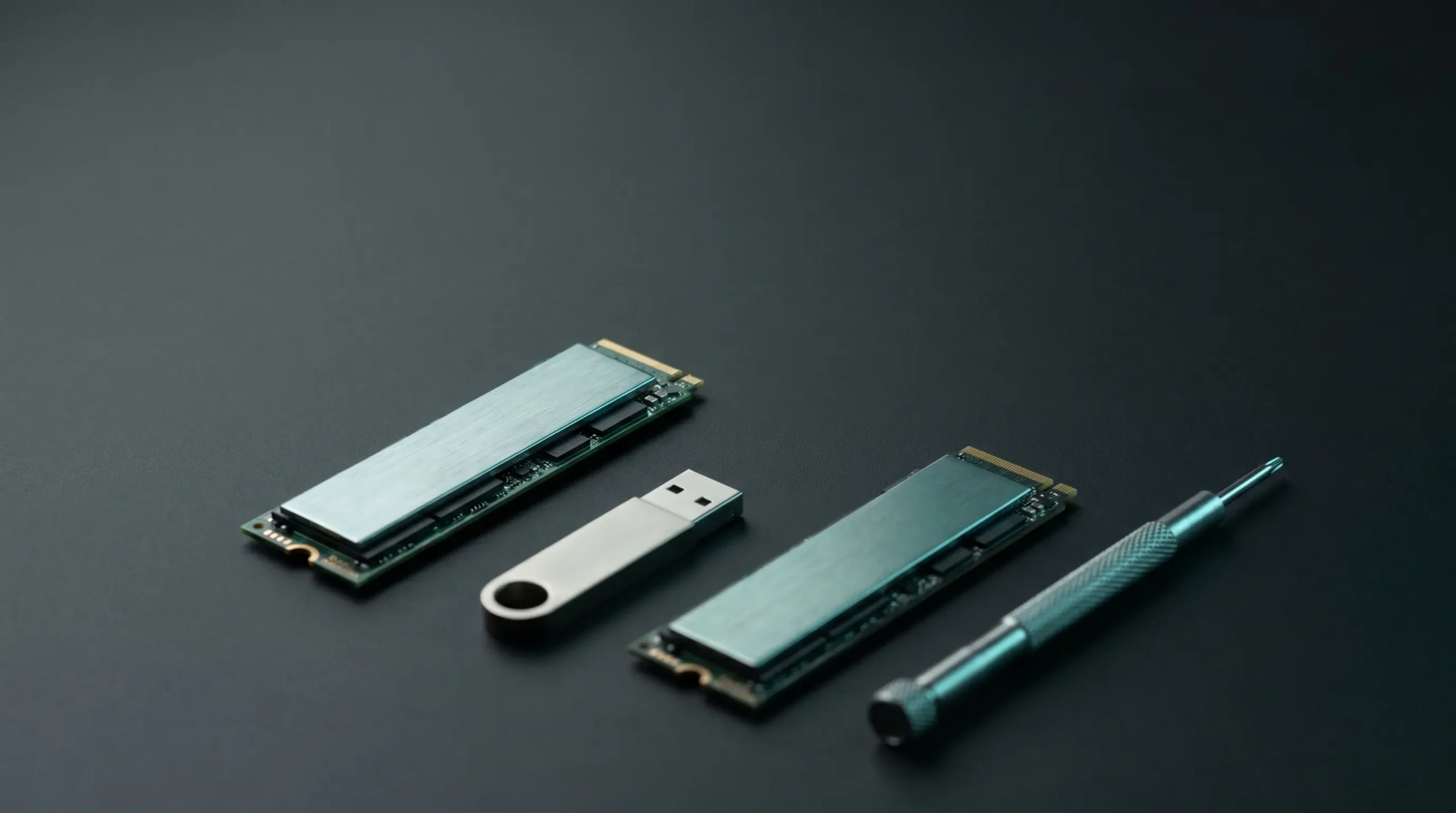
- Power down, open the case, and disconnect your existing drive, whether it is an NVMe (Non-Volatile Memory Express) SSD or a SATA SSD.
- Install the new, empty drive in a free M.2 or SATA port.
- Boot up, enter the BIOS or UEFI (Unified Extensible Firmware Interface, the firmware that starts the machine), and set it to boot from the USB stick.
- Run the standard installation; since the only drive present is the new one, the installer simply takes the whole disk.
- Remove the USB stick, reboot, and you are running Linux. Then power off and reconnect the original Windows drive.
Why Physical Separation Beats a Shared Disk
Once both drives are back inside the machine, switching systems is a firmware task, not a software gamble. Open your UEFI boot menu, pick the Windows drive or the Linux drive, and you are there. It takes about 30 seconds and never involves a bootloader, a partition, or a recovery command.
Because each operating system owns its own physical disk, a Windows update has nothing on the Linux drive to overwrite, and a Linux experiment cannot reach the Windows partitions. That isolation is the entire point. It is also why this approach pairs so well with an immutable distro like Fedora Atomic, where a failed update simply does not apply and you can roll back to the previous working version of the system.
The numbers behind the choice are friendlier than they used to be.
- Roughly 3% of desktops worldwide now run Linux, a small but steadily growing slice per StatCounter’s Linux desktop usage share data.
- 7,300 MB/s read speeds are now common on consumer NVMe SSDs, so a dedicated second drive feels instant.
- 2TB of NVMe storage costs a fraction of what it did a few years ago, making a separate Linux disk an easy buy.
Adoption is climbing on the commercial side too, with vendors like a Linux developer’s planned stock-market listing showing the operating system is no longer a hobbyist niche.
What This Method Costs and Who Should Skip It
The honest trade is hardware. You need a spare drive and a free slot for it, which is simple on a desktop tower and harder on a thin laptop that has a single soldered or M.2 slot. If you cannot add a second internal drive, an external SSD over USB or a wipe-and-replace on a spare machine gets you most of the way there.
The upside is that nothing here is permanent. If you dislike the distro you picked, you wipe the Linux drive and flash a different one; the steps never change, and your Windows install is never in the room when it happens. That low stakes loop is exactly what makes Linux worth trying now, especially with Windows 10 support having ended in October 2025 and pushing more people to look around.
So treat the install as an experiment, not a commitment. Give Linux a drive of its own, keep Windows where it sits, and let your UEFI menu do the switching.
Frequently Asked Questions
Do I need to erase Windows to install Linux this way?
No. The entire point of the two-drive method is that Windows stays on its own disk, untouched. You disconnect the Windows drive before installing Linux on a separate one, then reconnect it afterward, so your files and Windows setup are never at risk during installation.
Can I use the two-drive method on a laptop?
Sometimes. Many laptops have only one M.2 slot, which makes adding a second internal drive impossible. If yours has a spare slot you are fine; if not, you can run Linux from an external SSD over USB, or use a spare laptop you are willing to wipe entirely.
Which Linux distro is best for someone switching from Windows?
Linux Mint and Kubuntu feel the most familiar to Windows users because of their taskbar-and-menu layouts, while Pop!_OS suits people who like keyboard-driven window tiling. Any popular distro runs the same apps, so the desktop environment matters more than the distro name itself.
How do I switch between Windows and Linux after setup?
You open your UEFI boot menu at startup, usually with a key like F12 or Esc, and select the drive you want. With both drives installed, the switch takes about 30 seconds and never touches a bootloader or partition.
Is Fedora Atomic a good choice for beginners?
Yes. Fedora Atomic uses an immutable base, so a faulty update will not apply and you can roll back to the last working version. That resilience makes it forgiving for newcomers who are still learning what is safe to change.
Will Windows updates still break my Linux install if the drives are separate?
No. Windows updates that overwrite a bootloader or boot partition can only affect the disk Windows lives on. Because Linux sits on a completely separate drive, a Windows update has nothing on the Linux disk to overwrite.